
Talkspirit Launches Projects, Its New Project Management Module
.svg)
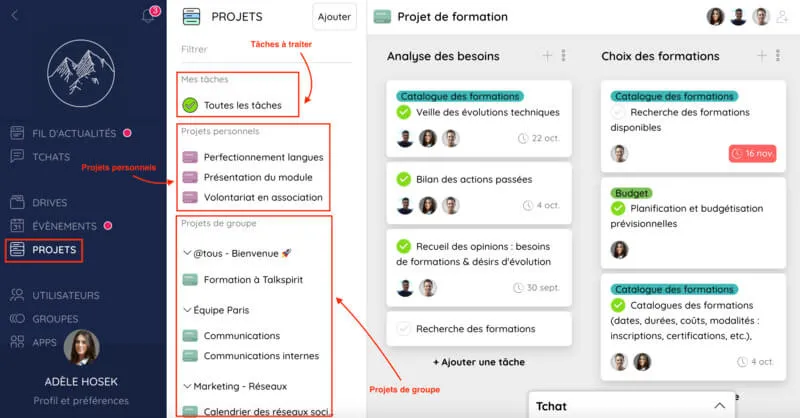
Have you noticed? A project management module is now available on Talkspirit. Accessible via the new "Projects" icon in the interface, this module lets you organize and track the progress of all your projects with ease.
Here's an overview of the Projects features.
Group Projects vs. Personal Projects
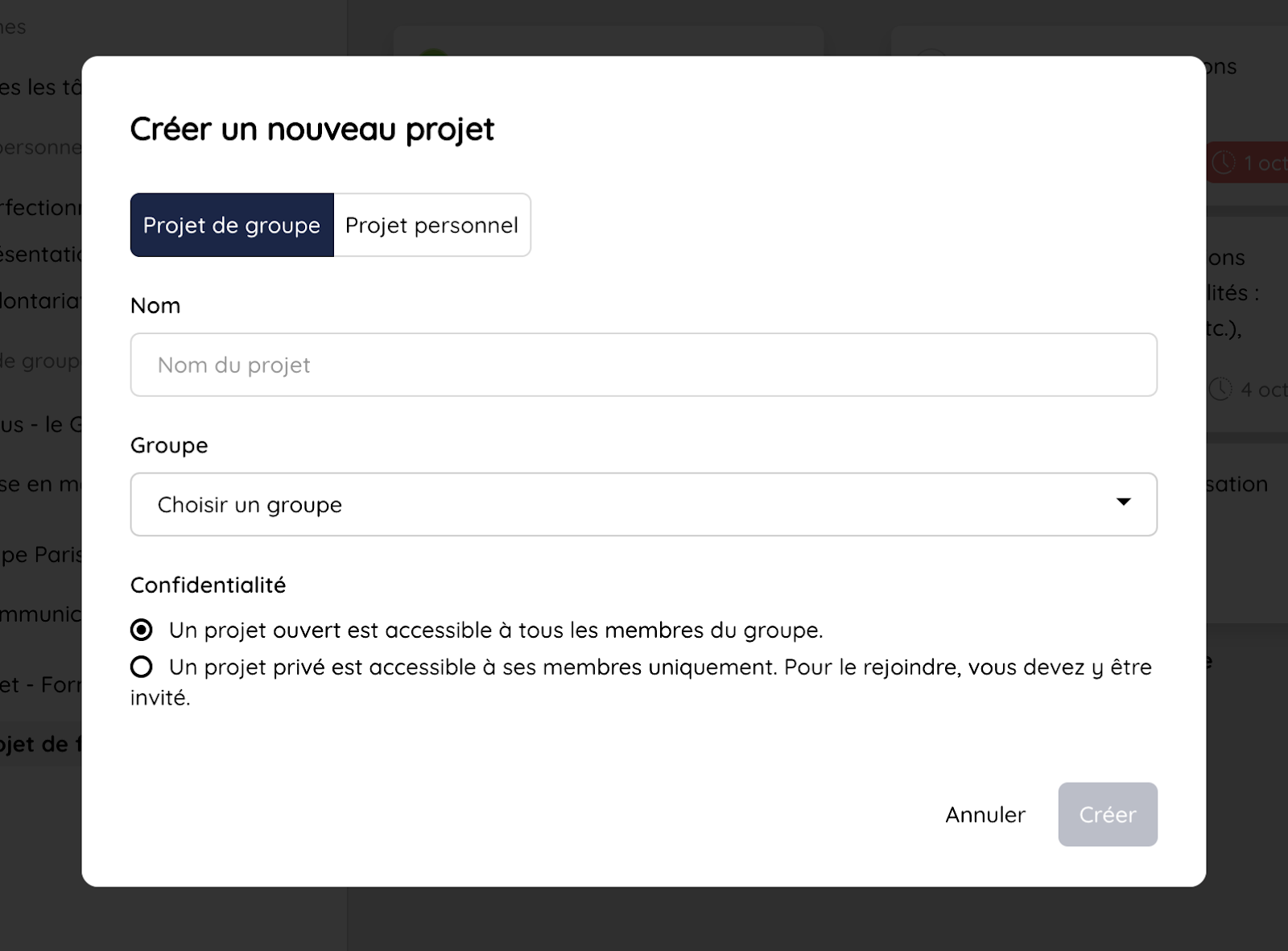
The Projects module lets you create two types of projects, with different privacy levels:
- group projects, which can be open or private
- personal projects, accessible only to you
Open group projects are accessible to all group members. Private group projects, on the other hand, are only accessible to members who have been invited.
Both group and personal projects can also be shared with other Talkspirit users, whether they're members or guests. This lets you collaborate on projects with people outside your organization.
Organizing Projects in Boards
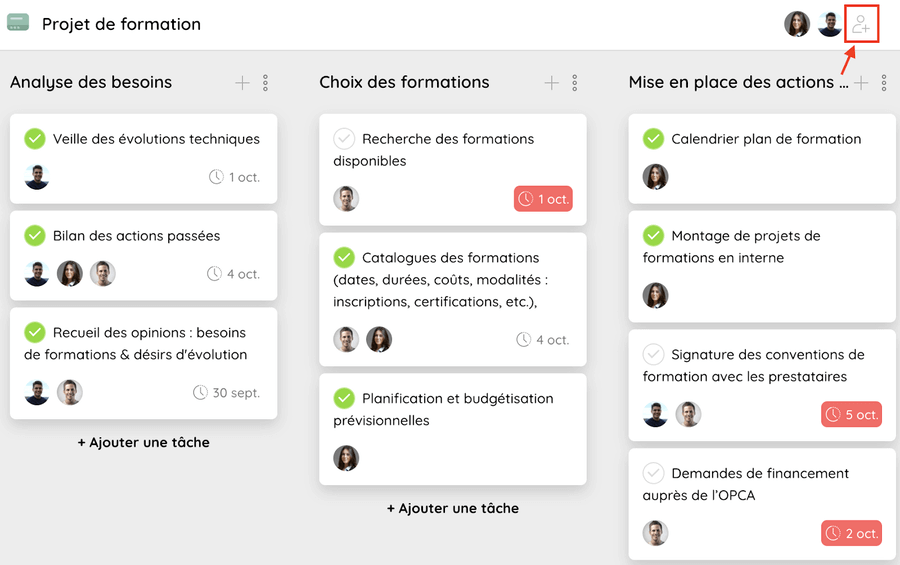
Each project is organized in a board made up of columns, each divided into tasks. This lets you quickly visualize each project's stages and track the progress of individual tasks.
Boards can be organized in various ways. For example, you can create:
- A classic board with 4 columns: "to do", "in progress", "on hold", and "done". In this setup, each team member moves their tasks from column to column as the project advances.
- A board organized by project stage. For a training project, for example, you might use columns like "needs analysis", "course selection", and "implementation".
- A date-based board. If you want to create a checklist of onboarding tasks for onboarding new hires, you can organize tasks by deadline—for example: "before arrival", "first day", "first week", "first month", etc.
Of course, many other configurations are possible. Don't hesitate to create your own boards to fit your team's needs.
Assigning and Prioritizing Tasks
Once your board is set up, you can add cards detailing the tasks to complete, along with their deadlines. Each card can be assigned to one or more users. You can also add:
- a description,
- labels (for example, to organize tasks by theme),
- and comments, to discuss with the relevant team members.
Tasks nearing their deadline appear in orange on the board, while overdue tasks appear in red—making it easy for everyone to prioritize the most urgent work. Once tasks are completed, you can either mark them as done or drag them into a dedicated "completed" column (depending on the board type you chose).
To save time, team members can view all tasks assigned to them from the "my tasks" section.
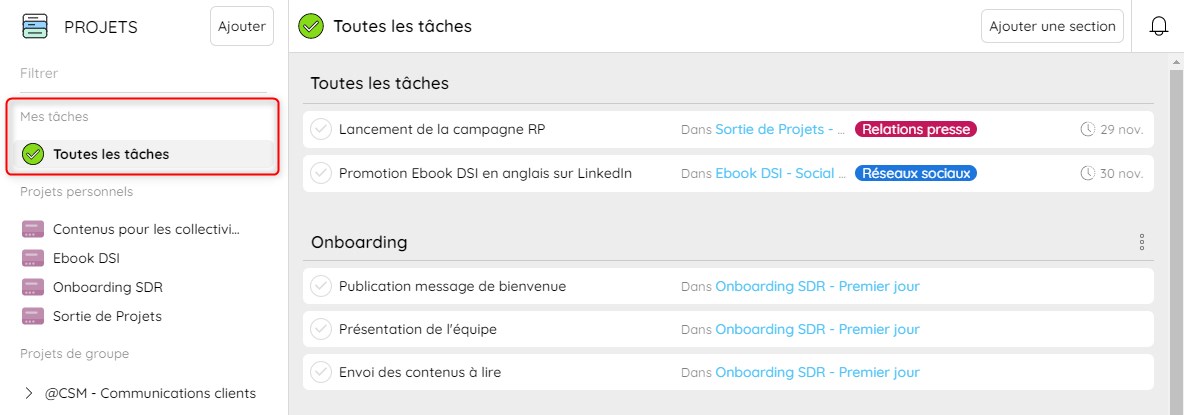
The "my tasks" section also includes a notification center that keeps everyone informed of upcoming deadlines, comments added to tasks, and any other project updates. It also lets team members organize their tasks into sections—for example, by priority or by project.
Simplified Project Management
Say goodbye to duplicate work and the productivity loss that comes from juggling too many tools. With Projects, you can organize and track all your projects in one single place, without switching between different apps.
Read also: Best project management software comparison
Whether your teams work on-site, on the go, or from home, you can access all your projects in one click and make sure everything is running as planned—without having to chase anyone.
Thanks to the "my tasks" view, team members can get an overview of their daily tasks as well as those tied to team projects. This makes it easy to measure project progress and assess the workload needed to complete them.
For Arnaud Brons, Product Manager at Talkspirit, "the Projects module helps strengthen collaboration with both internal and external stakeholders (such as contractors or clients). It's a real asset for teams looking to simplify their project management workflows, boost productivity, and save time every day—all while ensuring the security of shared data."
*
* *
Want to learn more about the Projects module features? Read this article or contact us directly. Our team will be happy to answer your questions.
–
Author: Emmanuelle Abensur